5 Free Video To Audio Apps For Android
Here's a list of 5 video to audio apps for Android which you can use to convert videos into audio tracks.
Read more: 5 Free Video To Audio Apps For Android »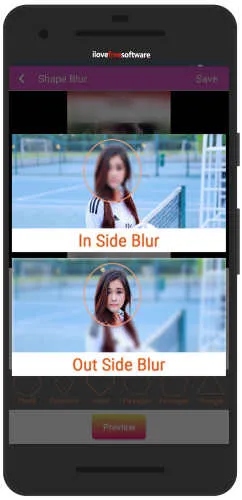
Here you can learn about how to add depth of field to video with this Android app. Select a video, choose custom shapes to add blur effect in specific part.
In this blog post, you will read about how to add depth of field to video with an Android app. Blur Video Editor is a free Android app that helps you to add blur background to the video. The app lets you add blur effects in custom shapes. You can apply blur backgrounds in vertical or horizontal shapes.
It is quite simple to use the app. All you need to pick a video from the gallery in which you want to add a blur effect in the background. Then, you can select the shape and save the output. The app does not spoil the quality of the video rather it remains exactly the same as the original video.
Also read: How to add depth of field in photos?
To add depth of field to video, you can install the app named Blur Video Editor. The app can be found easily on Google Playstore for free.
Once the app is downloaded, you can launch it. At this point, you will see several options on the homepage. There are options such as crop, cutter, video to gif, reverse, slow motions, and others.
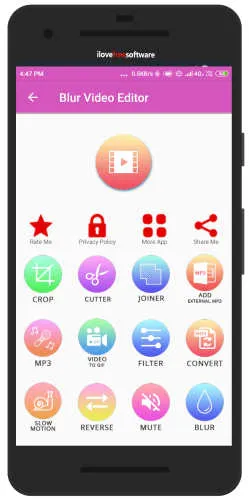
Here, you can pick the Blur effects. Right after tapping on the Blur option, you will be redirected to your phone gallery in order to select the video. You can pick any video in which you want to add depth or hide unwanted people or objects.
Now you need to choose the custom shape for the video. There are options like Full Blur, Horizontal, Special, and Shapes like circle, heart, triangle, etc.
Choosing these shapes, the app adds a blur effect to the selected part only. Suppose if you select a Heart shape then you can drag it on the specific part of the video. Thereafter, a pop up appears that prompts you to choose an option if you want to add blur effects in the heart or outside the heart.
You can select the option to add blur effect outside of the heart then the works as per your command. If you want to use other shapes you can follow the same procedure for that too. Besides that, you can select horizontal, square, portrait, and landscape shapes to add blur in the specific part.
Blur Video Editor is a simple yet useful app to add a blur effect to videos. The app lets you select the specific shape to blur it. You can choose different shapes like horizontal, vertical, circle, square, etc. Also, you can trim and crop the video and download the output without spoiling the quality of the original video.
Here's a list of 5 video to audio apps for Android which you can use to convert videos into audio tracks.
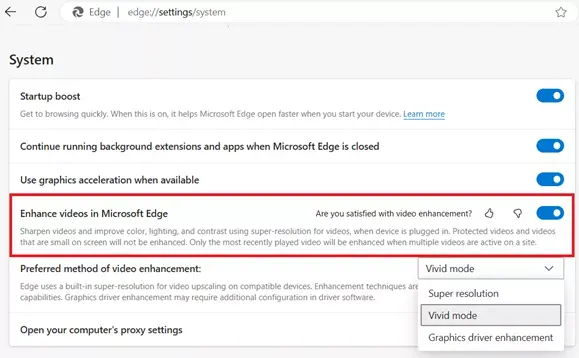
Read more: 5 Free Video To Audio Apps For Android »Improve the quality of videos you watch online with Enhance video in Microsoft Edge. Boost colors & sharpen videos.
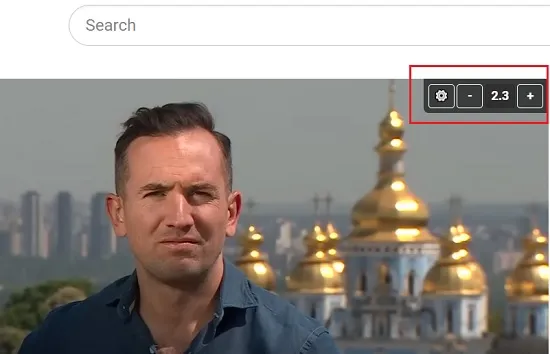
Read more: How to Enable Video Quality Enhancer in Edge to Improve Sharpness & Colors »SpeedMaster is a free Google Chrome Extension that allows you to adjust the playback speed for each individual YouTube channel.
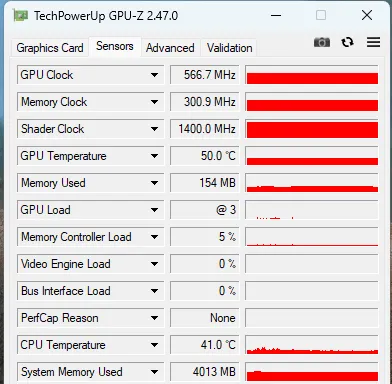
Read more: How to Set Different Video Speed for Different YouTube Channels »In this post, you will learn about some free software to monitor and track video memory usage of any GPU in real-time
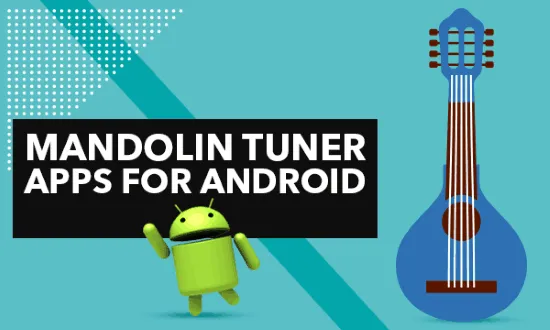
Read more: How to Monitor Video Memory Usage of any GPU »Here you will learn about 5 free mandolin tuner apps for Android. These apps can help you tune your mandolin strings by analyzing them in real-time.
Read more: 5 Free Mandolin Tuner Apps for Android »Song Engineer is an app for auto song composition. It uses an algorithm that creates & matches harmony and melodies of different instruments
Read more: Free Automatic Music Composition Generator for Android: Song Engineer »