
Cloudways: High-Performance WordPress Hosting That Can Scale

Cloudways logo on the cover of Woniune’s WordPress setup guide

Why Cloudways Flexible is our WordPress hosting pick for growing sites that need more server resources, easier scaling, and less server maintenance.

Affiliate disclosure: this article contains affiliate links. If you buy through them we may earn a commission, at no extra cost to you. It never changes what we recommend — see our affiliate disclaimer.

Contents
  1. About Cloudways
  2. Highlights
  3. What Makes Cloudways Flexible?
  4. Where the Performance and Stability Come From
  5. Who Should Choose Cloudways?
  6. What to Check Before You Buy

If your WooCommerce checkout slows down during a sale or your WordPress host keeps reporting CPU limits, Cloudways Flexible is the upgrade I’d look at first. You can choose the cloud provider and server location, add CPU and memory as the site grows, and leave the server software to Cloudways.

That combination is the reason to choose it. A basic shared plan can handle a small blog, and a bare VPS gives you more control if you want to manage it yourself. Cloudways fits in between: you decide where the site runs and how much capacity it gets, while Cloudways manages the server stack.

About Cloudways

Cloudways is a managed cloud hosting company founded in 2012 and based in Malta. DigitalOcean acquired it in September 2022. Cloudways serves small businesses, web agencies, and online stores by managing the server software and giving site owners a dashboard to run WordPress. DigitalOcean is one of several infrastructure providers available through Cloudways Flexible.

Sources: DigitalOcean’s Cloudways company profile and acquisition announcement.

Highlights

  • Choose the infrastructure. Pick a cloud provider, data center, and server size. Start with a region close to your main audience.
  • Scale an existing server. Flexible lets you increase resources from the dashboard, so a capacity upgrade can often happen without moving the site.
  • Spend less time on server maintenance. The platform manages the hosting stack and gives you a dashboard for backups, restores, and staging.

See Cloudways WordPress hosting plans

What Makes Cloudways Flexible?

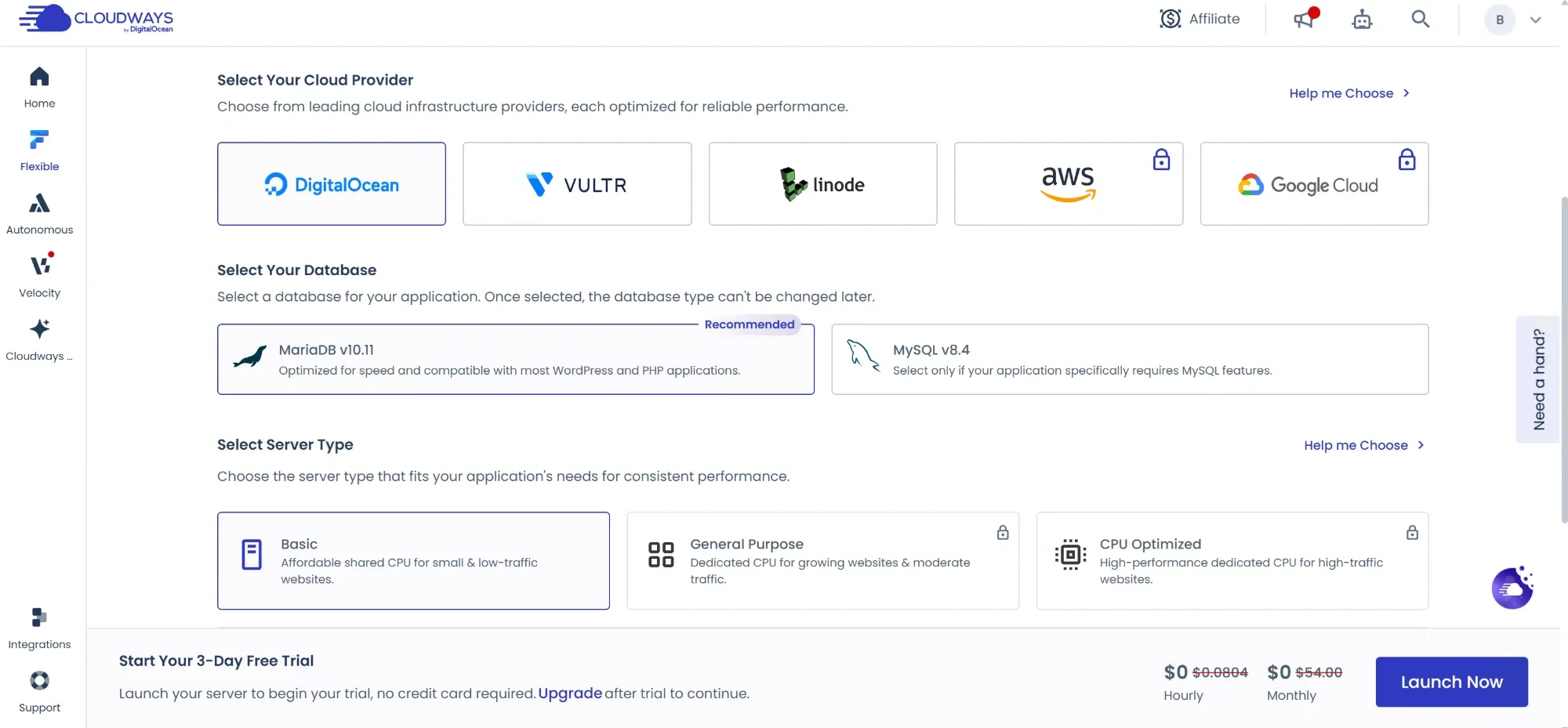
With Cloudways Flexible, you choose the underlying cloud infrastructure. DigitalOcean is a straightforward starting point if it has a data center near most of your customers. Cloudways handles the server setup, and you can launch WordPress from its dashboard without installing a web server, PHP, or a database by hand.

Cloudways Flexible setup screen showing cloud provider and server type options

The server setup screen in a later version of the dashboard. Provider and plan availability can vary. Screenshot via Woniune’s Cloudways WordPress setup guide.

Open Server Management → Monitoring and compare CPU and memory during normal traffic and your busiest periods. If several sites share the server, check which one is driving the load before paying for a larger plan. When the server is consistently short on capacity, open Vertical Scaling in the same menu to review the available sizes. Check the downgrade rules before you scale for a one-off promotion. Depending on the provider and what you changed, moving back to a smaller configuration can require cloning the server.

Flexible scaling is manual. If a store gets sharp, unpredictable bursts and you want the platform to add capacity automatically, look at Cloudways Autonomous. For steadier growth, Flexible is the plan I’d start with.

Where the Performance and Stability Come From

Think about which pages get slow. A cached article can be served without WordPress rebuilding it on each visit. A WooCommerce checkout or a logged-in member’s account page still has to do work in PHP and the database. That’s where extra capacity can make a difference, provided the server is actually the bottleneck.

Cloudways gives your sites the resources of the virtual server you choose. If you put several sites on the same server, those sites still share that capacity. For a store that pays the bills, I’d keep it separate from other busy projects so their traffic is less likely to interfere with its checkout.

Staging and backups help with a different kind of stability. Test a plugin or theme update on a staging copy, and make sure you have a recent backup before applying the change to the live site. Cloudways supplies the tools from the dashboard. You still decide what to update and check that checkout, forms, and email work afterward.

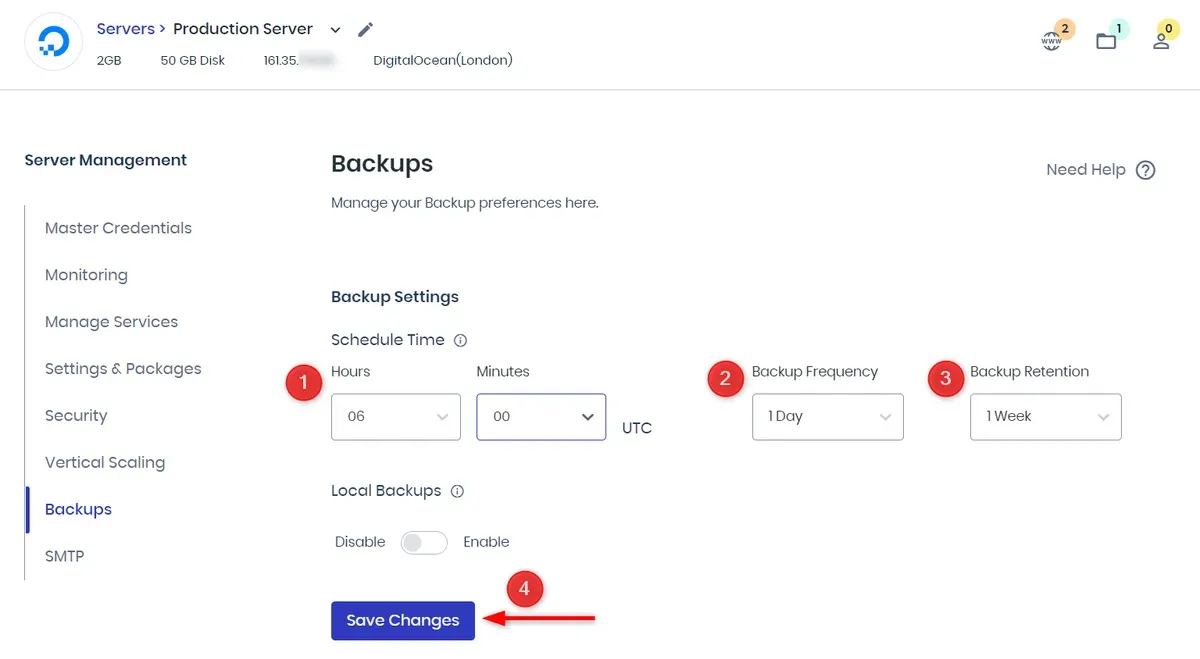
At the server level, go to Server Management → Backups to set the schedule, frequency, and retention. Choose the interval based on how much data you could afford to lose. A store receiving orders throughout the day may need more frequent backups than a site that publishes once a week.

Cloudways server backup settings for schedule time, backup frequency, and retention

Server-level backup settings. Screenshot via Woniune’s Cloudways backup and restore guide.

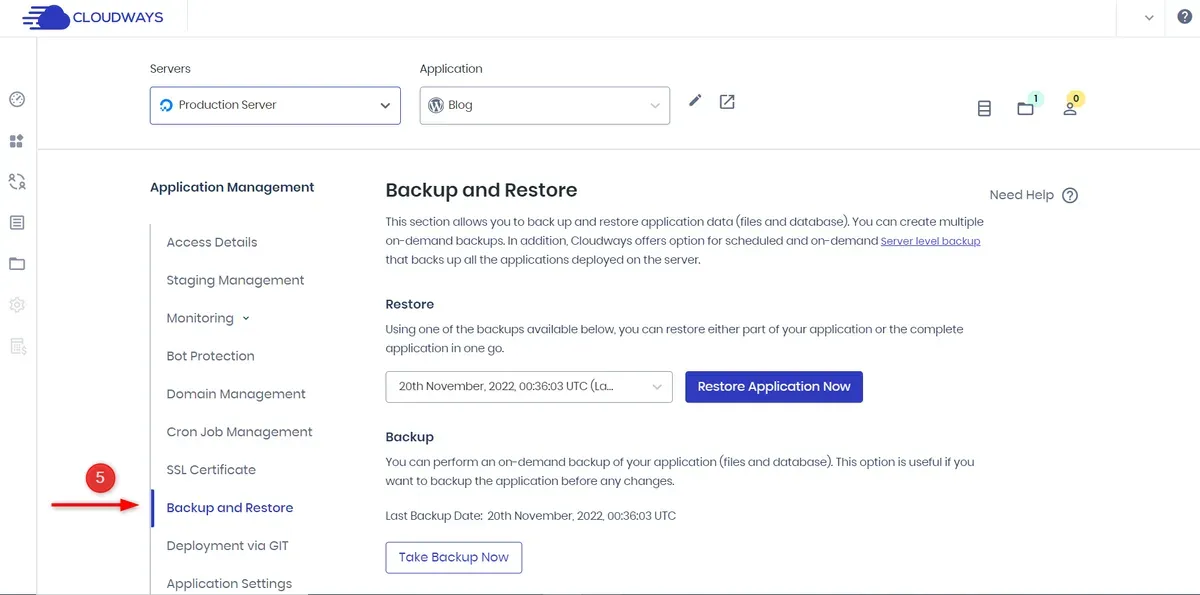
For a single site, Application Management → Backup and Restore lets you take an on-demand backup and pick a restore point. On a WooCommerce store, check what you are restoring before rolling back the database. Orders placed after the selected backup could be lost.

Cloudways application backup and restore screen with a restore-point selector and an on-demand backup button

Application-level backup and restore controls. Screenshot via Woniune’s Cloudways backup and restore guide.

Who Should Choose Cloudways?

Your situation What I’d choose
A new blog or brochure site with modest traffic Shared hosting. It is simpler, especially if you want domain and email in the same package.
A growing WooCommerce store, membership site, or busy WordPress site hitting hosting limits Cloudways Flexible. Start with a server sized for your normal traffic and leave room to scale.
A store with unpredictable traffic spikes and no one available to resize the server Compare Cloudways Autonomous with Flexible and check the billing terms for traffic spikes.
A site that needs root access or a custom system stack A self-managed VPS, if you can take care of maintenance and recovery.

What to Check Before You Buy

Budget for the server, off-site backups, and any add-ons you need. Arrange domain registration and business email separately. If you’re moving an existing site, test the pages that matter most before changing DNS. For a store, that means adding a product to the cart, completing a test checkout, and checking that the order confirmation arrives.

For a small site that just feels slow, check caching and plugins first. If the host is consistently running out of resources even after those fixes, Cloudways Flexible is my pick for a WordPress site that needs room to grow without putting server maintenance on your to-do list.

View Cloudways plans

Further reading: Cloudways’ guide to server scaling and Woniune’s guide to choosing and scaling a Cloudways server.