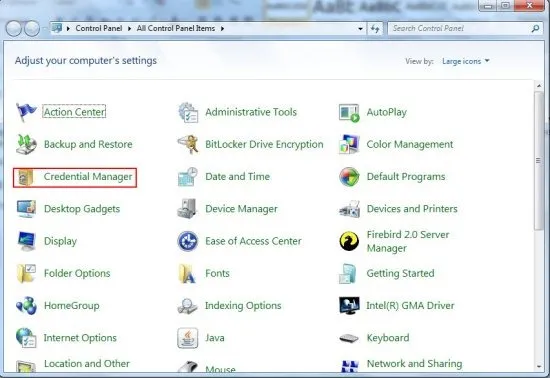
How to Use Windows Vault Credentials Manager
Here is small step-by-step tutorial on how to use Windows Vault Credentials manager to store and protect various passwords.
Read more: How to Use Windows Vault Credentials Manager »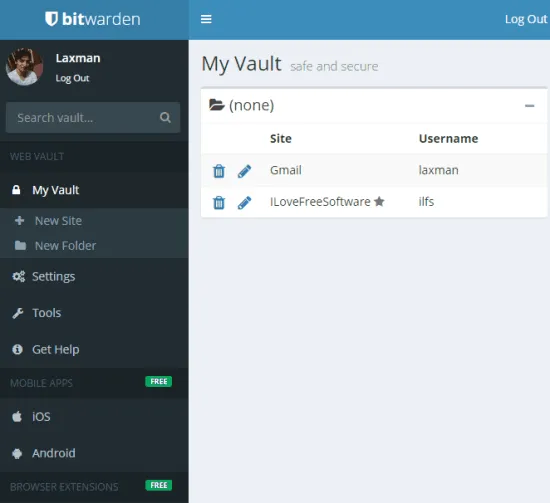
Here is a free password manager with encrypted vault and device sync features. You can use its web app, Chrome extension, and smartphone apps in syncing.
Here is a free password manager with encrypted vault and device sync features. It is named as “bitwarden Password Manager“. This password manager stores all your login credentials in a secure cloud, which remains encrypted with AES-256, PBKDF2 SHA-256, and salt hashing. Only you have the access to open your secure vault in decrypted form.
Apart from that, the service comes with two-step verification, browser extensions, smartphone apps, and the web app. So, you can use this free password manager in multiple devices and all the devices remain in syncing with a common account created by you. This free password manager is also user-friendly and anyone can use it without facing any problem. All these are some really good features that help compete it with LastPass and other similar tools.
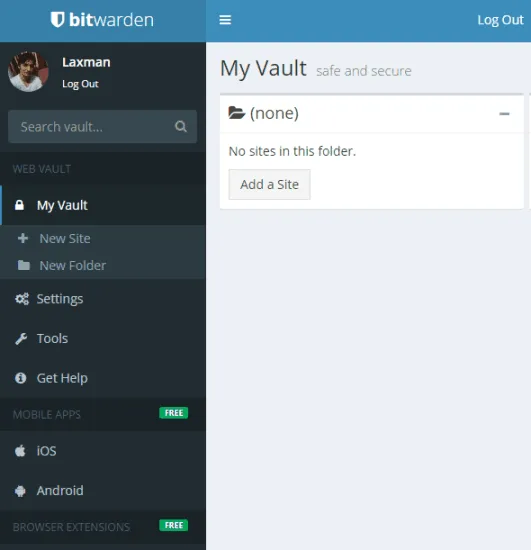
Above you can see the web interface of this free password manager where you can store and access your login credentials.
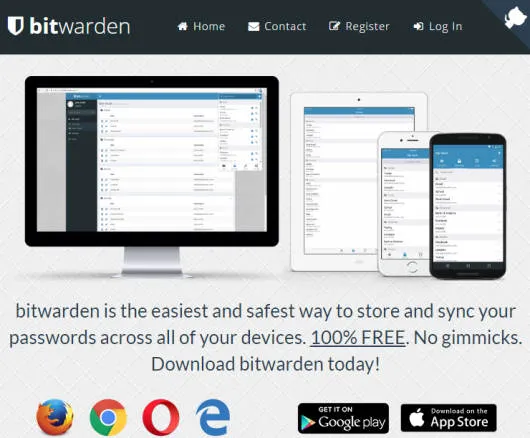
Note: At present, this free password manager is available for its web version, Chrome extension, Android and iPhone apps. In future, it will also be available for Firefox, Opera, and Edge browsers. I wish it would also come with its desktop client.
Let’s first start with its web interface.
Open the homepage of this free password manager and sign up. You must create a very strong password because if the master password is weak, it can be dangerous. You may take the help of strong password generators if you want.
After sign up, your Vault or I say dashboard will be in front of you on its web interface. You will find everything very simple and self-explanatory. There is a left sidebar which is used to create folders, add sites, change email, password, enable two-factor authentication, export data as CSV file, etc. The rest of the section is used to show all the credentials you have entered so far. You can also mark credentials as favorite.
You can start with by adding the very first website. use Add a Site button and a pop-up will open. Now you can fill details (site URL, username, password, etc.) and add it to your Vault.
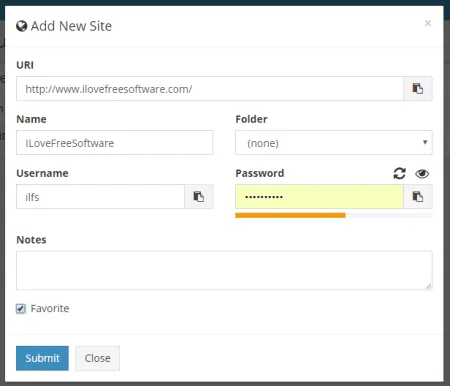
In a similar way, you can add more and more sites.
This is what you can do using its web app. Now let’s see what we get with its Chrome extension.
To access your vault using the web app, you need to open a tab and sign in every time. This is made very easy with the help of its Chrome extension. Its Chrome extension lets you access your login credential vault in a pop-up. Just install its Chrome extension, login, and your vault will be in front of you.
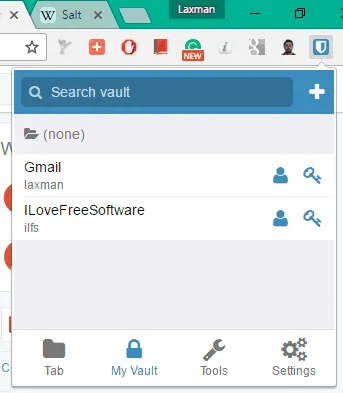
You can also edit details of any account using the pop-up.
There are many other benefits of using its Chrome extension, such as:
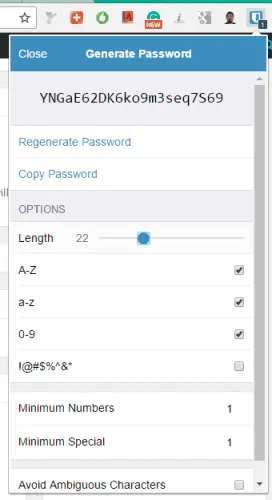
The Android app of bitwarden Password Manager works similar to its Chrome extension. After installation, you can login and access your Vault.
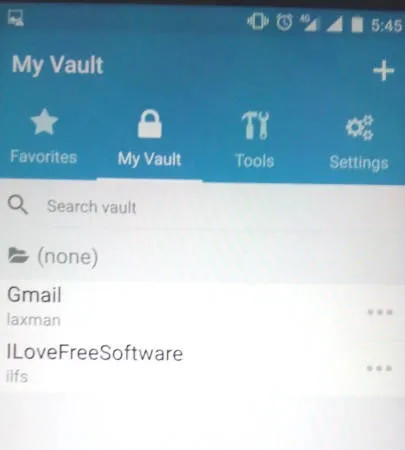
You can also edit any login credentials. Other than just accessing the vault and editing/adding the credentials of the sites, you can:
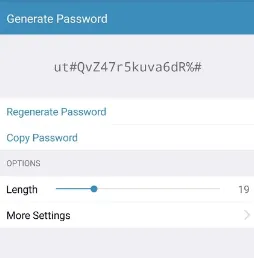
So, as you can see, all the options are same that are available in its Chrome extension. Use this password manager on any platform and store sites in your encrypted vault.
We all know what a password manager is, but this is not the only thing what we really look in a password manager. Features like encryption, security, device syncing, platform availability, etc., help us decide whether a password manager is good to use or not. bitwarden Password Manager has all these features. I believe, it can be a good choice and users will try it.
Here is small step-by-step tutorial on how to use Windows Vault Credentials manager to store and protect various passwords.
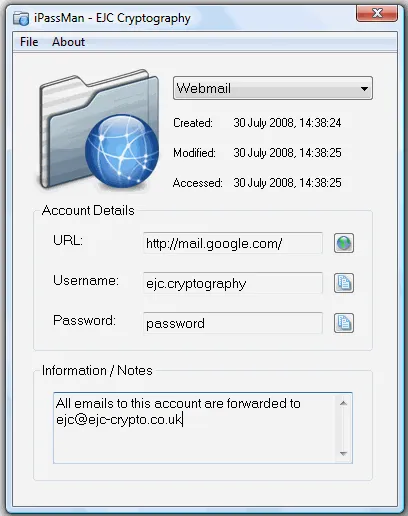
Read more: How to Use Windows Vault Credentials Manager »iPassMan is a free password manager that can securely save all your username and passwords. You just need to remember one master password. Safe and secure.
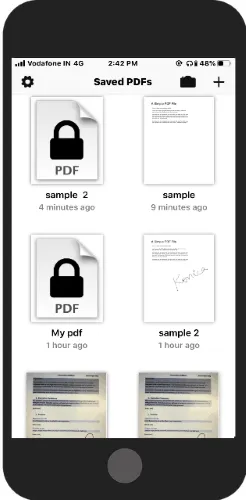
Read more: iPassMan – Free Password Manager »Here is the free document scanner for iPhone with hand signature and PDF password protect. Import files and add signatures with different colors and sizes.
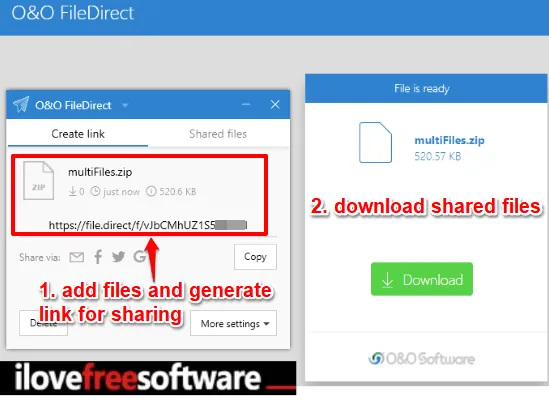
Read more: Free Document Scanner for iPhone with Hand Signature, PDF Password Protect »Here is a free P2P file sharing software with unlimited file size and password protection support. You can also set maximum number of downloads for files.
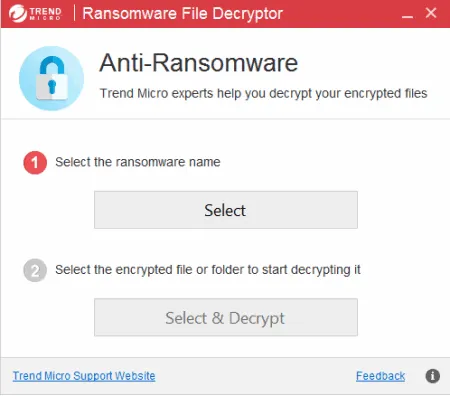
Read more: P2P File Sharing Software With Unlimited File Size, Password Protection »Trend Micro Ransomware File Decryptor tool can decrypt files encrypted by 25 different ransomware. You need to select type of ransomware and encrypted files
Read more: Free Software To Decrypt Files Encrypted By 25 Different Ransomware »Keep spam out of your real inbox. Free disposable email websites and email alias services compared: how long mail lasts, privacy and when to use each.
Read more: 6 Best Free Temporary Email Websites and Email Alias Services »