How To Change Login Screen of Windows
Here is a article on how to change login screen of Windows 8, 7, Vista and XP. Try this out to customize your Windows boot screen.
Read more: How To Change Login Screen of Windows »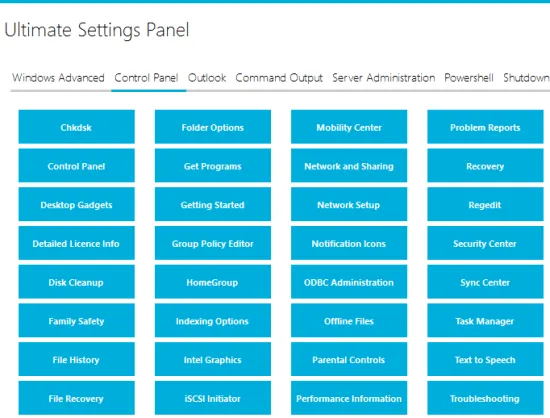
Ultimate Settings Panel is a free software to access more than 250 Windows tools and settings. Different tabs available that contain multiple tools.
Ultimate Settings Panel is a free software to access more than 250 Windows tools and Settings. Its interface has multiple tabs and each tab contains different buttons related to tools and settings. Just click on any button and it will open the window of the associated tool. For example, you can access Disk Cleanup utility, File History, File Recovery, use Shutdown Options, generate Group Policy results, open Boot menu, Credentials Manager, Disk Defragmenter, Local Users and Groups, and more.
This software also has tabs for Windows 7, 8, and 10 and those tabs provide buttons related to different tools. For example, you can use Windows 10 tab to open On-Screen Keyboard, Sticky Notes, Character Map, Volume Mixer, Advanced Accounts, etc. A couple of options are also available for web browsers that can be used as per the need.
In the screenshot above, its main interface is visible where you can see multiple buttons available under Control Panel tab.
This is a very simple software and anyone can understand it easily. Use this link, download the software, and install it.
Open the interface and the first tab “Windows 7” will be visible to you. Here you will see Mouse, Fonts, Bit Locker, Windows Firewall, Network Connections, God Mode, Action Center, and many other buttons. These buttons don’t provide extra features, but help to open native tools and settings of Windows.
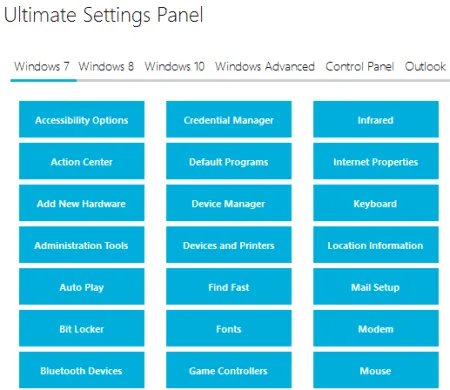
Just next to this tab, Windows 8, Windows 10, and other tabs are available. You only need to access a particular tab to view all the options that can be accessed using that particular tab. For example, when you have to view DNS Information, System Information, Windows Version, IP Config, Volume Information, etc., then you can take the help of Command Output tab. It also lets you export the visible information as TXT file.
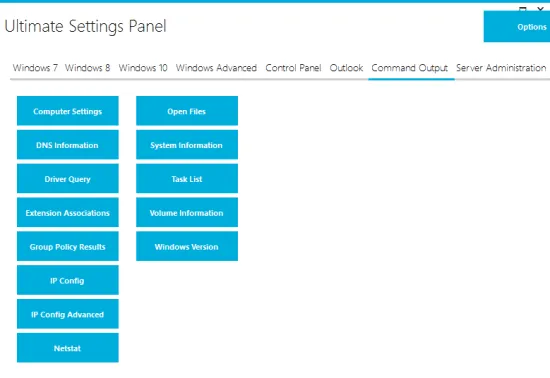
It takes only a few seconds to open a particular tool or setting by accessing the tabs.
The software also provides tabs for web browsers. Those tabs help you launch the browser, open incognito mode, disable plugins, open preferences, etc. The options are not so important, but you can use them if you want.
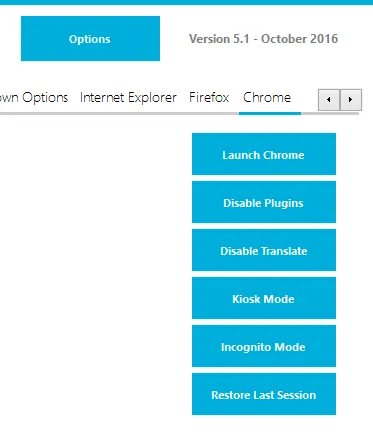
This is all we get with this software.
Here are some similar software you may try: Utilize Windows, PC Utility Manager, and WinTK..
For amateurs, tools like Ultimate Settings Panel is really useful. Tons of Windows settings and tools can be accessed from a single place. You only have to access the tabs and view the buttons. I can recommend it to all those people who are not so savvy and need some really simple tool to assist them.
Here is a article on how to change login screen of Windows 8, 7, Vista and XP. Try this out to customize your Windows boot screen.
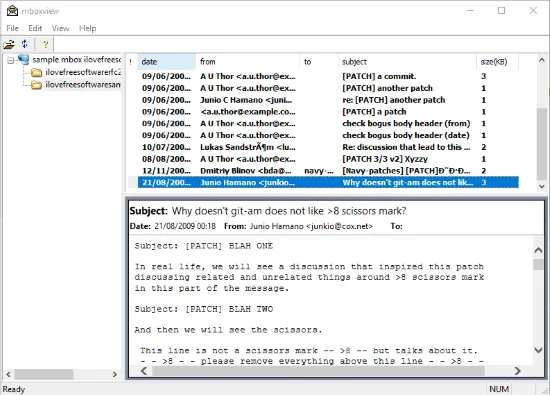
Read more: How To Change Login Screen of Windows »Here are 3 free MBox viewer software for Windows. You can add MBox file on the interface, see the list of all email messages, and view its content.
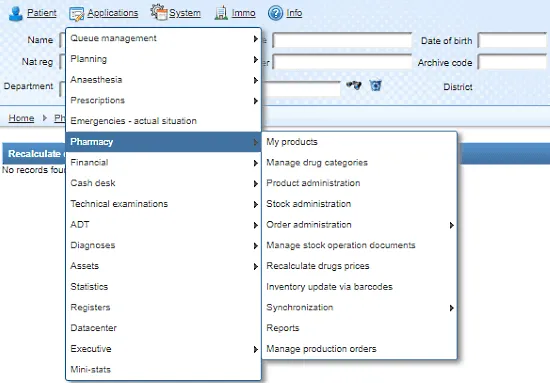
Read more: 3 Free MBox Viewer Software for Windows »This article covers a free medicine management software for Windows. This software helps you manage pharmaceutical records including product Inventory, stock, orders…
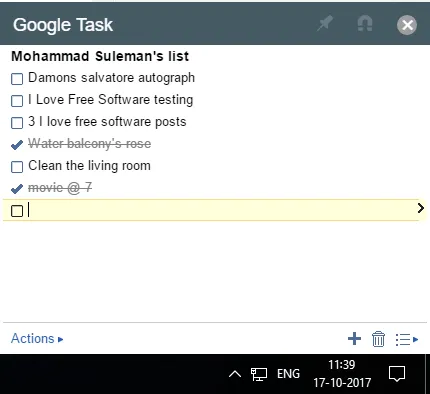
Read more: Free Medicine Management Software For Windows »Here is a free open source Google Tasks client for Windows. Use it to manage your daily tasks right from top of all your desktop applications easily
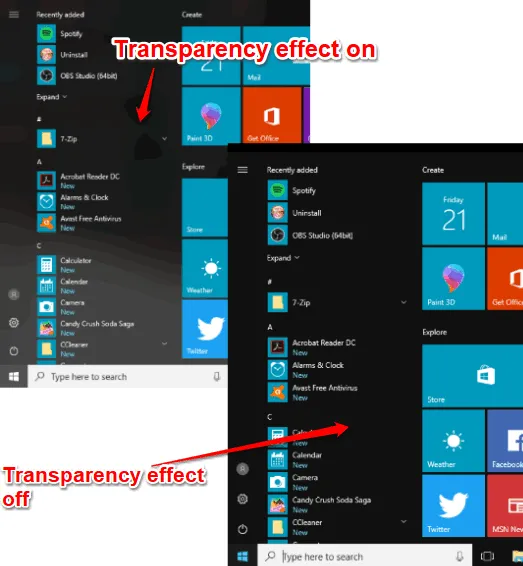
Read more: Free Open Source Google Tasks Client for Windows »This tutorial explains how to disable all transparency effects in Windows 10. It will remove transparency effect from taskbar, Start menu, apps, etc.
Read more: How To Disable All Transparency Effects In Windows 10 »This tutorial covers how to add Recycle Bin to Windows 10 system tray. You can also see total number of files available in Recycle Bin and their total size.
Read more: How To Add Recycle Bin To Windows 10 System Tray »