How To Change Login Screen of Windows
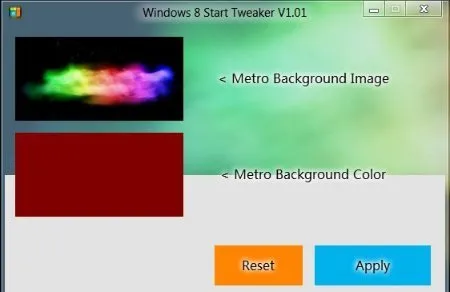
Here is a article on how to change login screen of Windows 8, 7, Vista and XP. Try this out to customize your Windows boot screen.
Read more: How To Change Login Screen of Windows »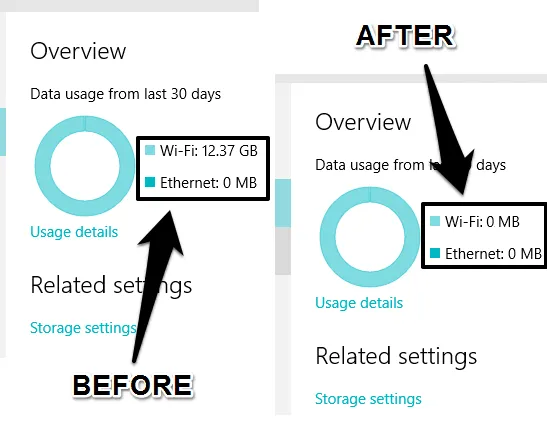
This tutorial explains how to reset data usage in Windows 10. System 32 folder can help you reset data usage details in your Windows 10 PC.
This tutorial explains how to reset data usage in Windows 10.
Windows 10 has this facility to check network data consumption with details for the past 30 days. However, there is no feature yet to clear that data usage and start from the beginning. It is reset automatically once the 30-day cycle is completed. Still, there is a hidden trick that can help you reset data usage limit anytime you want.
You don’t have to perform changes in Registry or use some other tool. The task to reset data usage can be done easily by removing some files from your Windows 10 PC.
Above you can see data usage comparison before and after resetting the data usage for my Windows 10 PC.
Before you reset data usage, you should disconnect from WiFi or any other network. Otherwise, you won’t be able to reset data usage to ‘0’. Now follow these steps:
Step 1: Open File Explorer and access “sru” folder available under System 32. You can also copy and paste "C:\Windows\System32\sru" in the address bar to directly access the contents of sru folder.
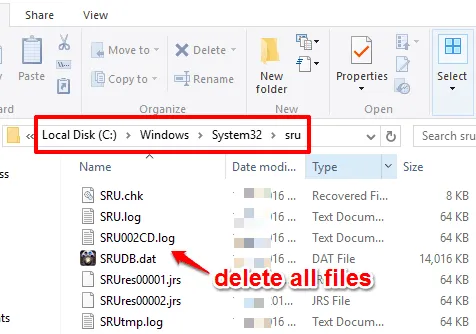
Step 2: Select all the files available in that folder and delete them.
Step 3: Now access Data usage section using Settings and you will notice that the data usage is reset to 0.
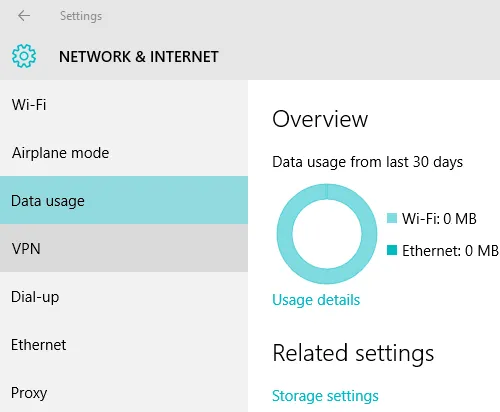
That’s it! Now you can reconnect with WiFi or any other network to start collecting the new data usage details.
Keeping an eye on your data usage is a good feature provided by Windows 10. However, it should also in control of users to reset that limit, but there is no direct option for this currently. This tutorial will surely help you to reset data usage in your Windows 10 PC.
You might also want to read:
Here is a article on how to change login screen of Windows 8, 7, Vista and XP. Try this out to customize your Windows boot screen.
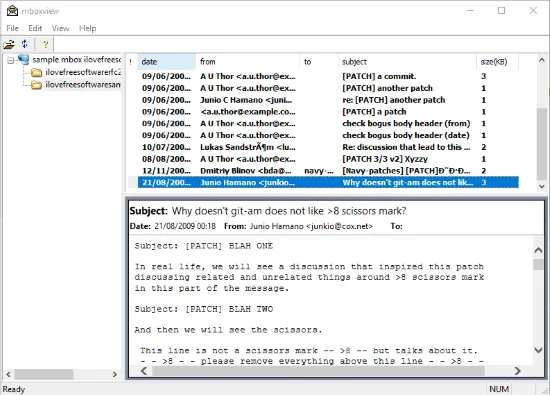
Read more: How To Change Login Screen of Windows »Here are 3 free MBox viewer software for Windows. You can add MBox file on the interface, see the list of all email messages, and view its content.
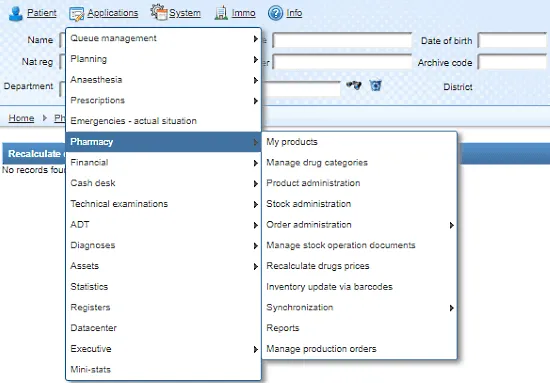
Read more: 3 Free MBox Viewer Software for Windows »This article covers a free medicine management software for Windows. This software helps you manage pharmaceutical records including product Inventory, stock, orders…
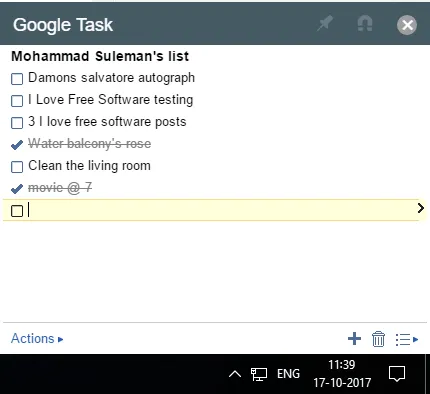
Read more: Free Medicine Management Software For Windows »Here is a free open source Google Tasks client for Windows. Use it to manage your daily tasks right from top of all your desktop applications easily
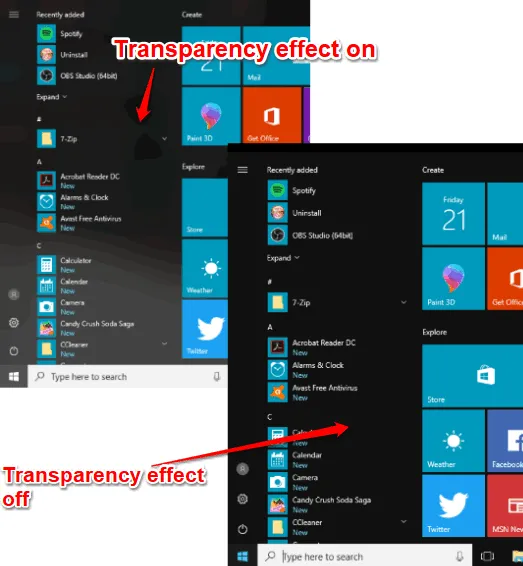
Read more: Free Open Source Google Tasks Client for Windows »This tutorial explains how to disable all transparency effects in Windows 10. It will remove transparency effect from taskbar, Start menu, apps, etc.
Read more: How To Disable All Transparency Effects In Windows 10 »This tutorial covers how to add Recycle Bin to Windows 10 system tray. You can also see total number of files available in Recycle Bin and their total size.
Read more: How To Add Recycle Bin To Windows 10 System Tray »