How To Change Login Screen of Windows
Here is a article on how to change login screen of Windows 8, 7, Vista and XP. Try this out to customize your Windows boot screen.
Read more: How To Change Login Screen of Windows »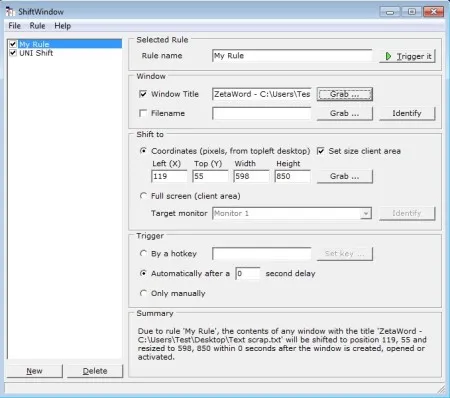
ShiftWindow is a free desktop utility for Windows which allows you to resize and reposition windows using keyboard hotkeys. Free download.
ShiftWindow is a free window resizing and shifting software for Windows which you can use to resize and reposition application windows using keyboard hotkeys.
Each application will have it’s own rule and they are gonna be detected by either window titles, or by selecting the executable of the application. With the help of rules you can reposition and resize windows by setting the location and new window size in pixels.
Rules can be managed in the left sidebar. New and Delete buttons down below will either add or remove window resizing and relocation rules from the list. The entire right side of the interface is for editing rules. Everything can be setup there, window name or executable name which is gonna be affected by this rule, values in pixels for the location and new window size, hotkey triggers and so on.
Most of us have applications which we are using each day, and we’ve grown accustomed to having them arranged in a specific way on the monitor or monitors if you have several of them. Manual resizing and repositioning is time consuming, especially if you’re using a lot of applications. ShiftWindow also works with multiple monitors, you can for example set up an application so that using hotkey triggers it opens up in fullscreen on a completely different monitor.
Similar software: WinSplit, Resize Window Border In Win 8.
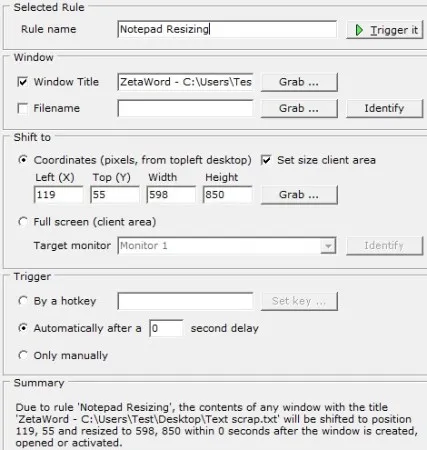
New rules can be created in the left sidebar. Rule name can be anything you want. Windows section allows you to select window name or executable of the window that you would like to manage. Window location, its size and whether it’s gonna open up fullscreen can be setup in the Shift to section. Target monitor option allows you to set a different monitor where it’s gonna open up in fullscreen mode.
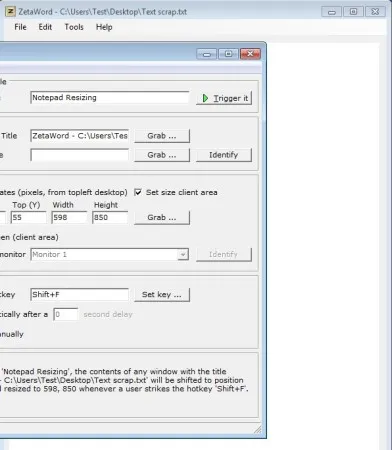
Window that we have setup really was resized and relocated to the location that we’ve have setup. For more easier setup, you can use the Grab button, so that ShiftWindow uses current location and size values of the select window. It saves you the trouble of having to type them manually. Every time that the window moves you can easily return it using the hotkey which you’ve configured for that rule.
ShiftWinodw is perfect for anyone who’s managing a lot of applications. With this free window resizer and location changer everything can be automated. Setup window layout and then just use hotkeys to resize them. Free download.
Here is a article on how to change login screen of Windows 8, 7, Vista and XP. Try this out to customize your Windows boot screen.
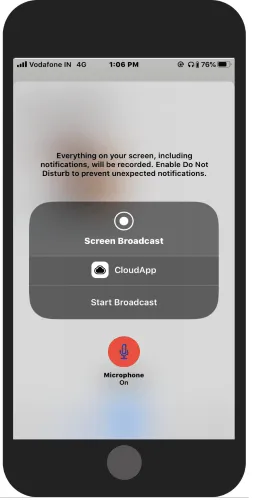
Read more: How To Change Login Screen of Windows »Easily broadcast iPhone screen using this free CloudApp for iOS app. Take photo and videos, upload files from your phone to app and add in a collection.
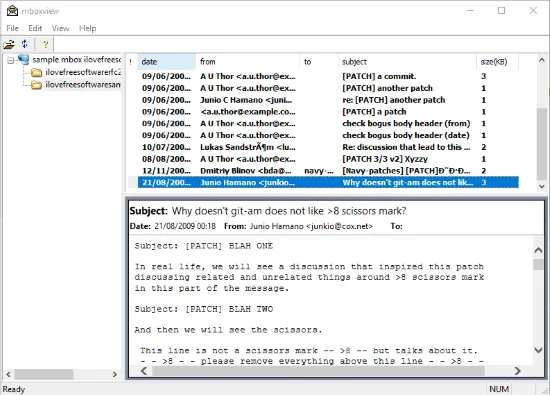
Read more: Broadcast iPhone Screen Using This Free CloudApp for iOS App »Here are 3 free MBox viewer software for Windows. You can add MBox file on the interface, see the list of all email messages, and view its content.
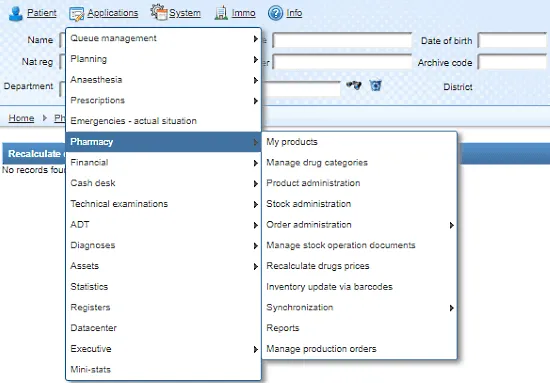
Read more: 3 Free MBox Viewer Software for Windows »This article covers a free medicine management software for Windows. This software helps you manage pharmaceutical records including product Inventory, stock, orders…
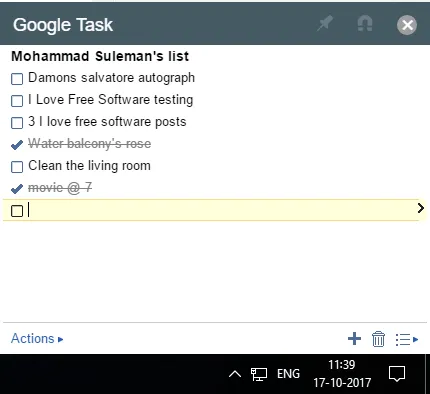
Read more: Free Medicine Management Software For Windows »Here is a free open source Google Tasks client for Windows. Use it to manage your daily tasks right from top of all your desktop applications easily
Read more: Free Open Source Google Tasks Client for Windows »This tutorial explains how to disable all transparency effects in Windows 10. It will remove transparency effect from taskbar, Start menu, apps, etc.
Read more: How To Disable All Transparency Effects In Windows 10 »