How To Change Login Screen of Windows
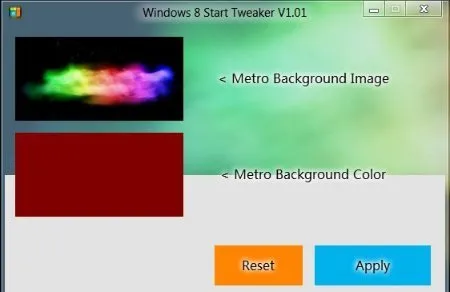
Here is a article on how to change login screen of Windows 8, 7, Vista and XP. Try this out to customize your Windows boot screen.
Read more: How To Change Login Screen of Windows »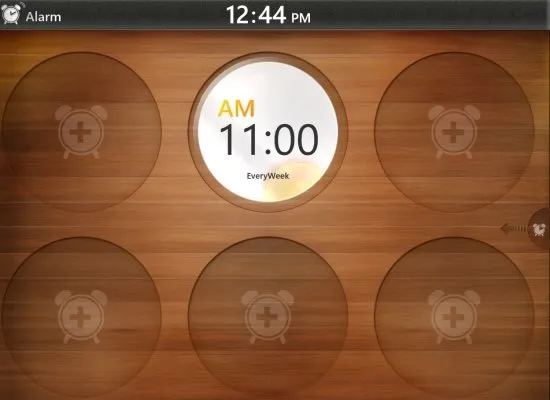
KoAlarm is a free Windows 8 Alarm Clock app where can set, up to six different alarms for every week, daily, twice a week, or whatever you like.
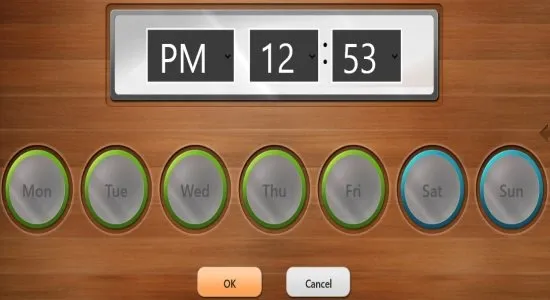
KoAlarm is a free Windows 8 Alarm Clock app available under the ‘Productivity’ category of Window 8 store. This alarm clock for Windows 8 brings you alarm clock and a beautiful timer. You can set up to six different alarms for every week, daily, twice a week, or whatever you like.
Its is very easy to enable or disable already set alarm or alarms on this Windows 8 alarm clock app. Just one touch is required to turn off or on the alarm. Also, there is an option to edit a specific alarm that lets you change the time of alarm or modify the days on which you want the alarm to be rung. The Alarm Clock app gives a notification along with a beautiful soothing music on your Windows 8 system, at the top right corner, clicking on it will turn off the alarm.
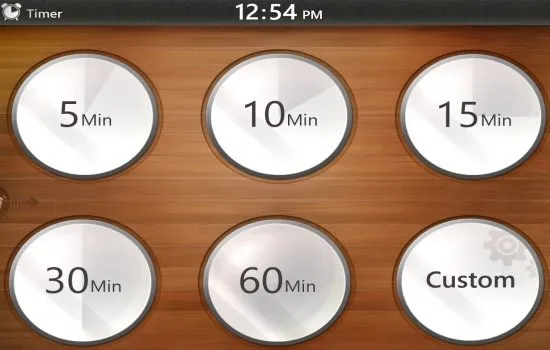
Now, lets talk about the Windows 8 timer available in KoAlarm. As you switch over to the timer, you get five different timers to choose from such as 5, 10, 15, 30, and 60 minutes along with a customize option. Just click on one to start the timer. Else, you can also customize time by clicking on the ‘Customize’ option given at the bottom right side on the timer screen. The timer works perfectly well and gives you a notification along with a soothing music when it ends. Click on the notification to stop the tune and remove the notification.
Also, check out our post Alarm Clock Apps for Android, 3D Desktop Clock, Alarm Clock Apps for iPhone.
There are two ways to switch between Alarm & Timer. As you open the app, it will open the alarm screen. Now, if you want to switch to timer, just right-click anywhere on the screen → a horizontal panel will open at the top of the screen including two option: Alarm, Timer. Just click on the one you want to go to.
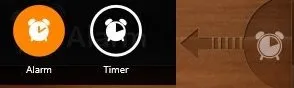
Another short way to switch between the alarm and timer is really cool. On the alarm screen, you will find a clock like button at the middle right corner → click on that button to head over to the timer screen. Make sure that this time the clock button is on the middle left corner.
Do not miss out our post on Windows 8 Wikipedia App.
In short, KoAlarm is a nice addition to Windows 8 start menu screen to set alarm on the big Windows 8 screen. If you are into alarm thing a lot, then KoAlarm is a must for you, otherwise just enjoy reading the article.
Here is a article on how to change login screen of Windows 8, 7, Vista and XP. Try this out to customize your Windows boot screen.
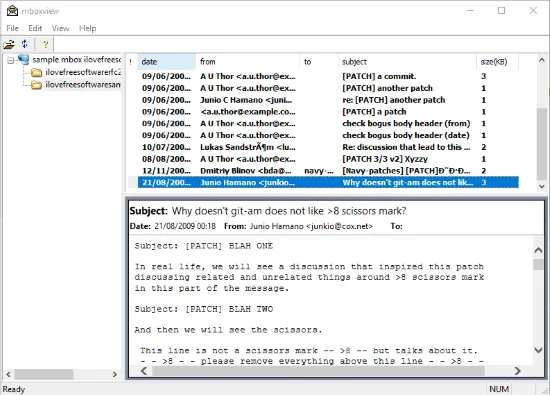
Read more: How To Change Login Screen of Windows »Here are 3 free MBox viewer software for Windows. You can add MBox file on the interface, see the list of all email messages, and view its content.
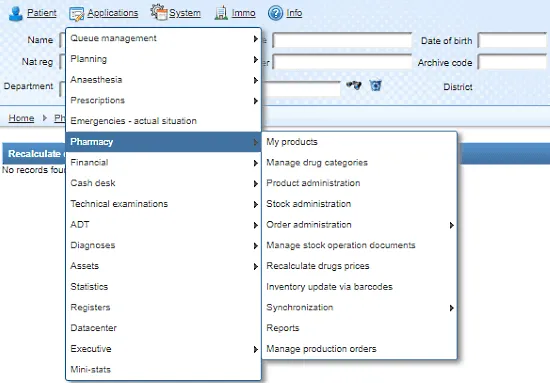
Read more: 3 Free MBox Viewer Software for Windows »This article covers a free medicine management software for Windows. This software helps you manage pharmaceutical records including product Inventory, stock, orders…
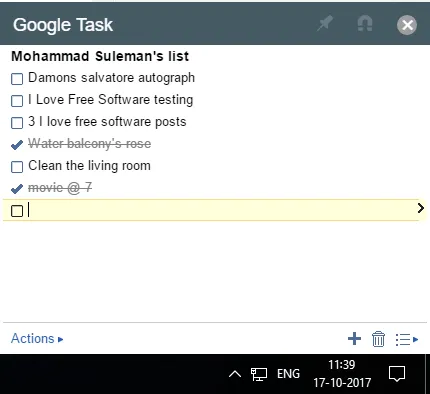
Read more: Free Medicine Management Software For Windows »Here is a free open source Google Tasks client for Windows. Use it to manage your daily tasks right from top of all your desktop applications easily
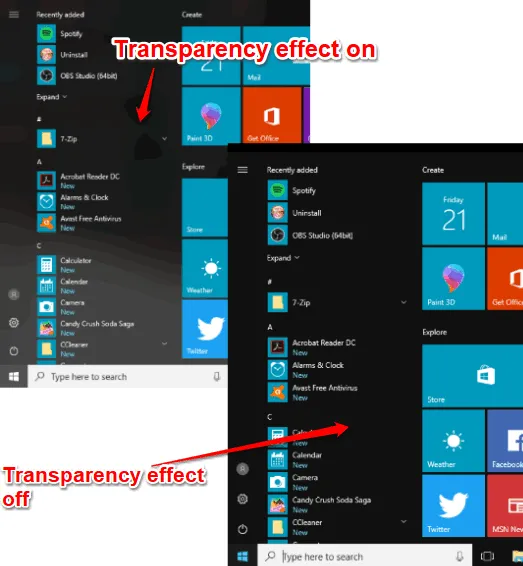
Read more: Free Open Source Google Tasks Client for Windows »This tutorial explains how to disable all transparency effects in Windows 10. It will remove transparency effect from taskbar, Start menu, apps, etc.
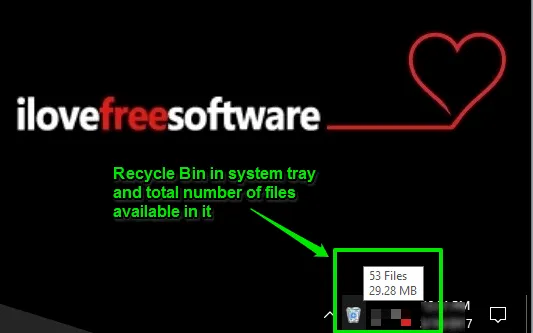
Read more: How To Disable All Transparency Effects In Windows 10 »This tutorial covers how to add Recycle Bin to Windows 10 system tray. You can also see total number of files available in Recycle Bin and their total size.
Read more: How To Add Recycle Bin To Windows 10 System Tray »