How to Run Python in Google Sheets
Learn how to run Python in Google Sheets to import data, process data, and visualize data with the help of charts and graphs.
Read more: How to Run Python in Google Sheets »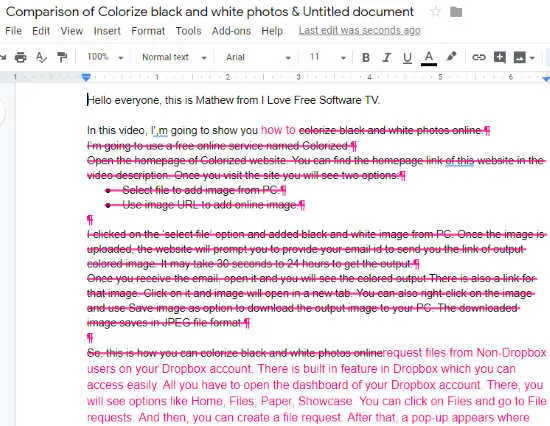
Now you can easily compare two documents in Google Docs. See the differences between two files & changes over time without losing the original file.
The blog post explains how to compare two documents in Google Docs. Educators and business users can now easily compare the two separate files. Google Doc has this dedicated ‘Compare documents‘ tool. Several users can edit the file without worrying about losing the changes in the document.
To start the comparison, you need to pick a first doc file and choose another file that you want to compare. This will create a new file with the suggested highlights.
The user with whom you share the file can see the differences between two files. Users can also check the replacement of the text content, line spacing, text color, and font size to be aware of what all changes have been made in the output.
Also check out the free autocorrection tool for Google Docs.
To compare two different documents, you are not required to install any add-ons. All you just need to see differences in documents within Google Docs. Let’s know how to do that.
Step 1: Open a Doc file in Google Docs.
Steps 2: See in the menu section and click Tools.
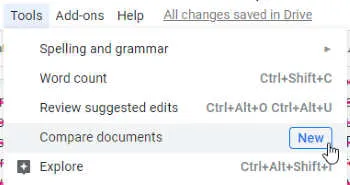
Step 3: Click the Compare documents which is a new feature in Google Docs.
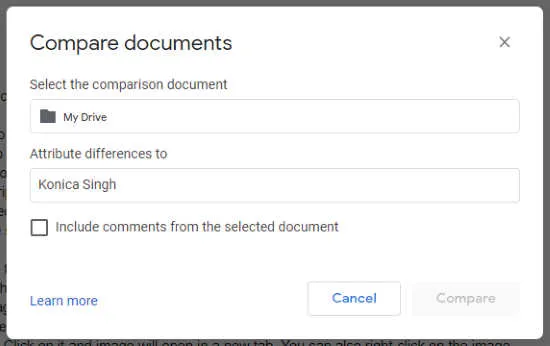
Step 4: Select the document which you want to compare with. At this point, you get the following options:
Step 5: Once the Doc file is compared, you can see the differences in the output. It highlights the comparisons shown in the very first image. The user who you shared your file with, can see the differences of the original document and the suggested edits.
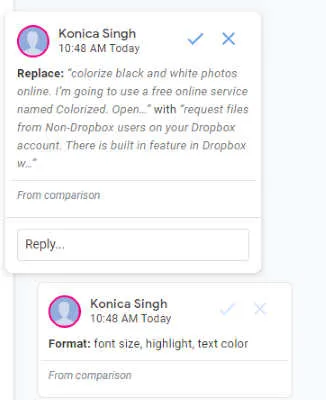
The user can also drop the comment in order to reply. By ticking up the comparison, you can accept the suggestions whether it’s about line spacing, text color, font size, etc. Eventually, you will come up with the sorted file after comparing two documents.
The new feature of Google Doc is quite beneficial for students and business users. The Doc owner can now easily compare two doc files to find out the differences with the highlights. It is a good option to see the changes over time in the Doc file.
Learn how to run Python in Google Sheets to import data, process data, and visualize data with the help of charts and graphs.
Read more: How to Run Python in Google Sheets »This article details how to save documents to OneDrive by default in Windows 10. You can save all your documents directly to OneDrive for centralized access
Read more: How To Save Documents To OneDrive By Default In Windows 10? »Check out these best free online CSV to TSV converter websites where you can convert data from CSV format to TSV format in seconds.
Read more: 8 Best Free Online CSV to TSV Converter Websites »Check out these best free online ODS to CSV converter websites where you can convert OpenDocument Spreadsheet data to CSV format.
Read more: 10 Best Free Online ODS to CSV Converter Websites »Use these PPTX to JPG converter online services to quickly convert one or more PPTX files to JPG, BMP, PNG, etc., formats.
Read more: 7 Best Free PPTX to JPG Converter Online Services »Use these online CSV escape websites to quickly escape all your unescaped CSV data or unescape CSV data with ease.
Read more: 9 Best Free Online CSV Escape Websites »