
How to Speed Up WordPress on Hostinger with LiteSpeed Cache

SSL certificate installed automatically

Make a WordPress site faster on Hostinger: check SSL and the hPanel performance options, enable file cache, set up LiteSpeed Cache and measure the result.

Affiliate disclosure: this article contains affiliate links. If you buy through them we may earn a commission, at no extra cost to you. It never changes what we recommend — see our affiliate disclaimer.

Contents
  1. Highlights:
  2. Before You Start: Measure
  3. Step 1: Check the Performance Settings in hPanel
  4. Step 2: Set Up LiteSpeed Cache
  5. Other Notes
  6. Next Step

Site speed matters for SEO: a fast site tends to rank better in Google and other search engines, and visitors stay longer. SiteGround has its Speed Optimizer plugin to help WordPress sites. Hostinger’s counterpart is LiteSpeed Cache, which works with the LiteSpeed web servers Hostinger runs, and most of the setup is a few switches.

This is the last part of the series on moving from SiteGround. If you haven’t moved yet, start with how to migrate a WordPress site to Hostinger.

Highlights:

  • Cache and CDN are the two most effective one-click speed-ups.
  • Remove other caching and speed plugins, such as SiteGround’s Speed Optimizer, before using LiteSpeed Cache.
  • The “Advanced” preset in LiteSpeed Cache is a good start for most sites.
  • Measure with PageSpeed Insights before and after the move.

Before You Start: Measure

Run your site through Google PageSpeed Insights before you migrate and save the mobile and desktop scores. After the move and the tweaks below, test again. Comparing both results is the only reliable way to know the changes helped.

Step 1: Check the Performance Settings in hPanel

A few settings in the Hostinger panel affect performance.

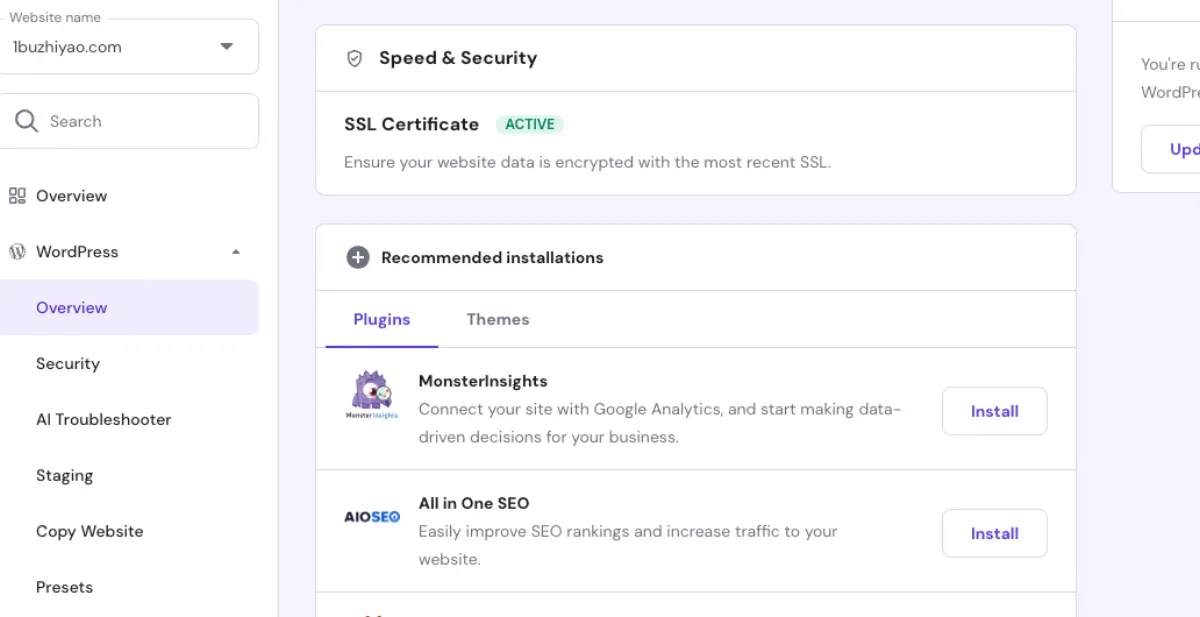
  1. SSL. Once your domain is connected, the SSL certificate is installed automatically. Open the site over https:// and confirm there’s a padlock.

    SSL certificate installed automatically

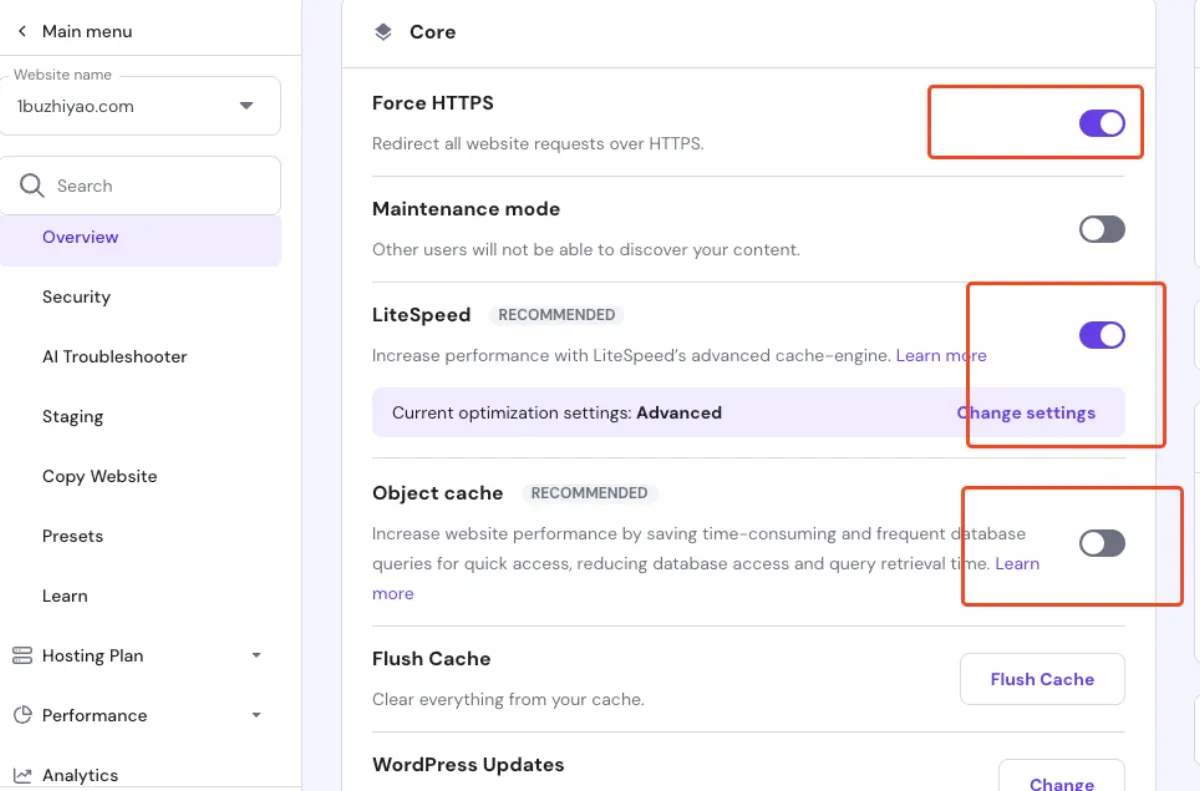
  2. Performance options. Turn all three options on in the panel.

    Enable all three performance options

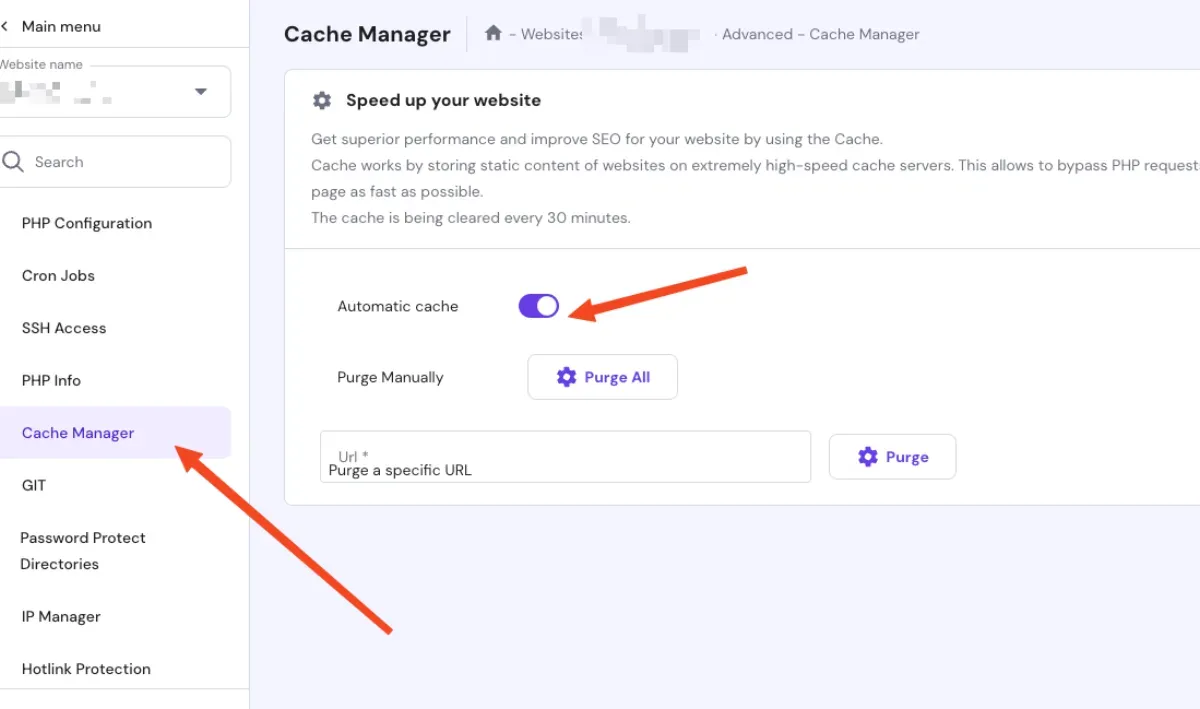
  3. File cache. Make sure file cache is enabled.

    File cache enabled

The screenshots show the panel as it looked when I took them. Hostinger moves menu items from time to time, so if a label differs, look for the same option name under the website’s performance or advanced section.

Step 2: Set Up LiteSpeed Cache

LiteSpeed Cache is a WordPress plugin that’s installed along with WordPress when you create the site on Hostinger. Two rules for a clean setup:

  • One caching plugin only. LiteSpeed Cache conflicts with SiteGround’s Speed Optimizer and with similar plugins (WP Rocket, W3 Total Cache and so on). Delete the others so Hostinger’s native optimization can work. If you migrated from SiteGround, remember that Speed Optimizer came along with the site.
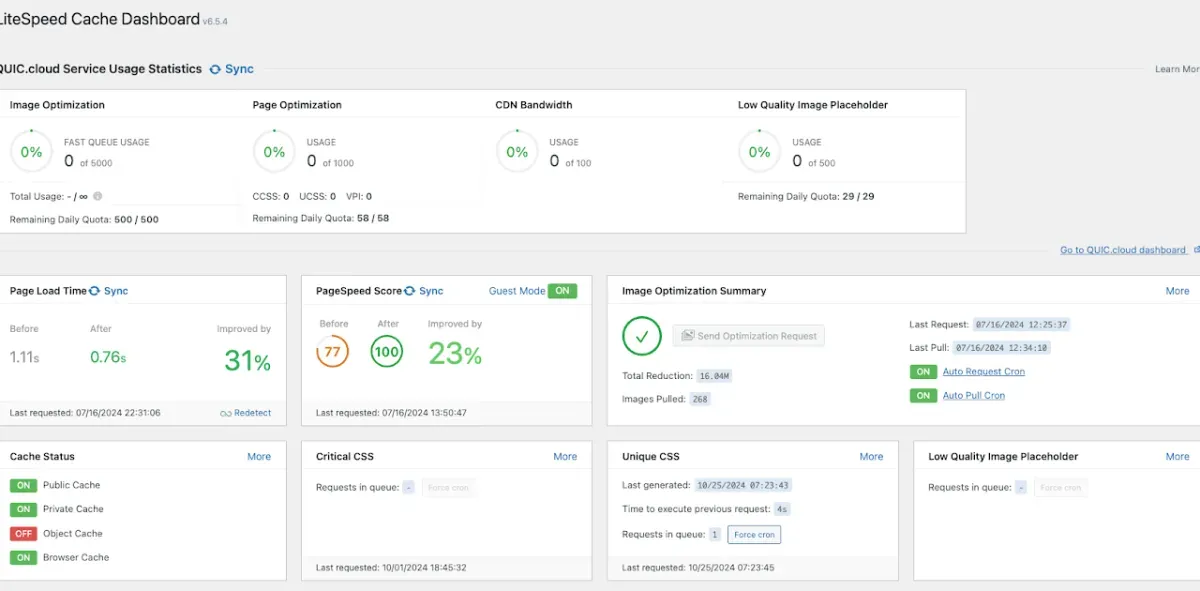
  • Use a preset first. In the LiteSpeed Cache plugin, open the Presets screen and apply Advanced. It’s a good choice for most sites. Test the site after applying it; if something looks broken (layout, forms, a menu), fall back to the Basic preset or turn off the option that causes it, usually JavaScript or CSS combining.

LiteSpeed Cache presets, Advanced applied

Clear the cache after changing a setting, and test pages while logged out, since cached pages aren’t served to logged-in admins.

Other Notes

  • CDN and cache are the most important one-click speed-ups. Hostinger’s Unlimited and Cloud plans include a CDN; on other plans you can put Cloudflare’s free CDN in front of the site.
  • Images matter. Compress and resize images, and serve WebP. A fast server can’t fix a 5 MB hero image.
  • Keep WordPress, themes and PHP updated. Choose a current PHP version in the panel as long as your plugins support it.
  • Compare PageSpeed scores before and after. Differences in a single run can be noise, so test a few times.

Next Step

If you’re still comparing hosts, read Hostinger vs SiteGround. To see what a plan really costs over the years you plan to keep it, use our web hosting cost calculator.

See Hostinger hosting plans

Final Thoughts:

On Hostinger, most of WordPress speed comes down to three things: SSL and the panel options switched on, one caching plugin (LiteSpeed Cache) with the Advanced preset, and a CDN. Set them once, measure before and after, and avoid piling on extra optimization plugins.

Related: 5 Free Brotli Compression Tools Online · 21 Best Free Online Image to Data URI Converter Websites