How To Change Login Screen of Windows
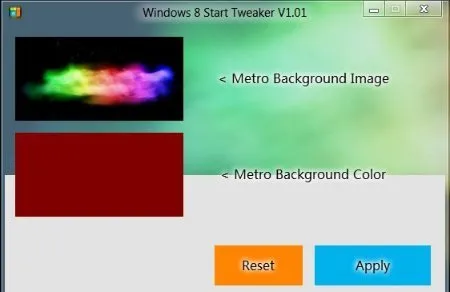
Here is a article on how to change login screen of Windows 8, 7, Vista and XP. Try this out to customize your Windows boot screen.
Read more: How To Change Login Screen of Windows »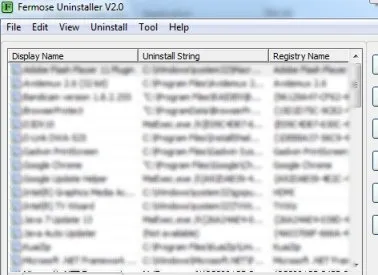
Fermose Uninstaller is an uninstaller software available free for windows that helps you to remove installed applications from your PC. Download it free.
Fermose Uninstaller is an uninstaller software available free for Windows that helps you to remove installed applications from your PC. It is one of the easy to use tool that lets you easily remove applications completely. Even it provides you the facility to create a backup of registry keys. These registry keys contains uninstall information of applications. Fermose Uninstaller will provide you list of installed programs on your computer along with the options which you can perform using this handy software.
In addition to it, you can easily edit or delete any entry alongwith the facility to add a new entry to this uninstaller software. You can also create an administration password here. It is the fast and easy way to remove installed applications from your computer. And all benefits are available for free.
Working with this uninstaller software is an easy task. Simply, you need to download it first to your PC. Use this given link to download Fermose Uninstaller. Click this link, and it will lead you to a new web page. Here, you will find the download option of Fermose Uninstaller. Hit on the given Download option and it will be downloaded to your system within a few moments. After this, extract its files into a folder. Now run its application file and it will open up. There is no need of installation. It works directly.
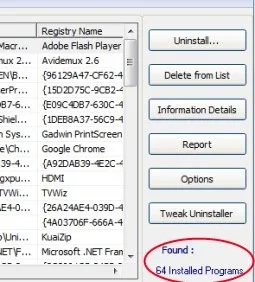
Just after opening it, it will open up showing you number of installed programs found (at the bottom right corner) on your computer. Along with this, it provides you multiple options which you can perform using this uninstaller software. These options will be available at the right side of its window (see the below given screenshot). You can easily uninstall a desired application just by clicking on the Uninstall button. It will uninstall that application completely (from registry too).
Likewise, you can also delete a particular available item from the list of this uninstaller. For this, you need to hit on the Delete from List button.
There are some more useful options available in this handy software. Such as:
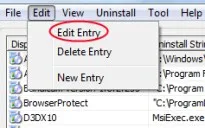
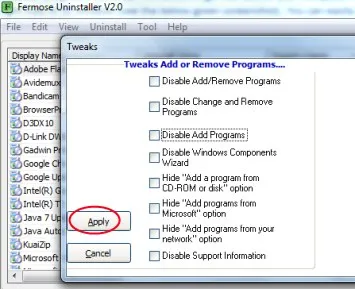
Note: There is an enable password protection function available but I didn’t find any use of it. However, you can try it for yourself. You can set password using Tool option.
Fermose Uninstaller is a good uninstaller software that lets you easily and securely delete applications.
Also checkout these free software to uninstall programs.
Here is a article on how to change login screen of Windows 8, 7, Vista and XP. Try this out to customize your Windows boot screen.
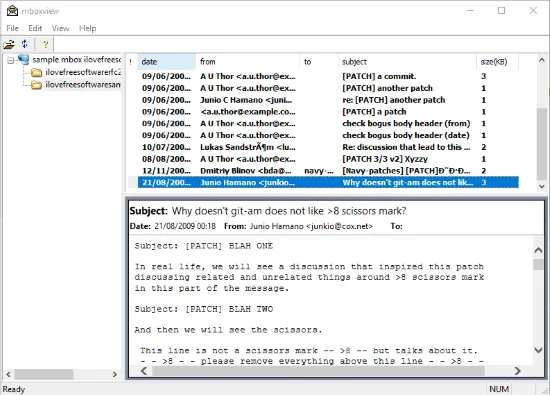
Read more: How To Change Login Screen of Windows »Here are 3 free MBox viewer software for Windows. You can add MBox file on the interface, see the list of all email messages, and view its content.
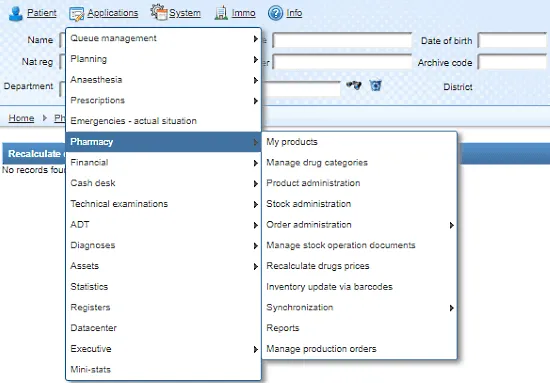
Read more: 3 Free MBox Viewer Software for Windows »This article covers a free medicine management software for Windows. This software helps you manage pharmaceutical records including product Inventory, stock, orders…
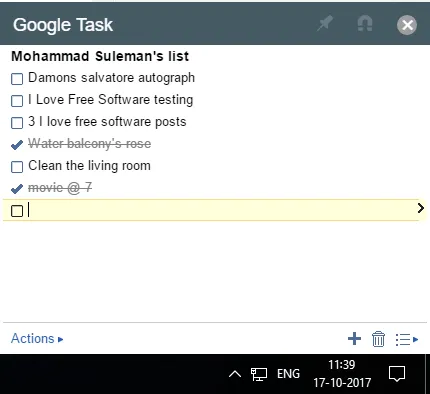
Read more: Free Medicine Management Software For Windows »Here is a free open source Google Tasks client for Windows. Use it to manage your daily tasks right from top of all your desktop applications easily
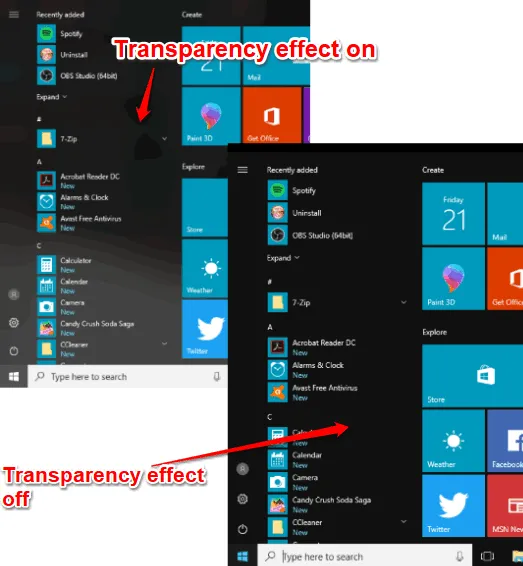
Read more: Free Open Source Google Tasks Client for Windows »This tutorial explains how to disable all transparency effects in Windows 10. It will remove transparency effect from taskbar, Start menu, apps, etc.
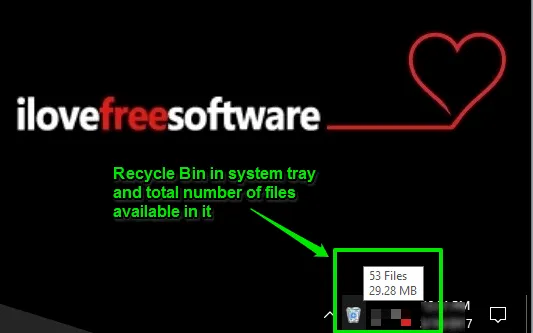
Read more: How To Disable All Transparency Effects In Windows 10 »This tutorial covers how to add Recycle Bin to Windows 10 system tray. You can also see total number of files available in Recycle Bin and their total size.
Read more: How To Add Recycle Bin To Windows 10 System Tray »