10 Best Free Video Converter Software
Here are 10 best free video converter software to convert videos to multiple output formats. Download best free video converter.
Read more: 10 Best Free Video Converter Software »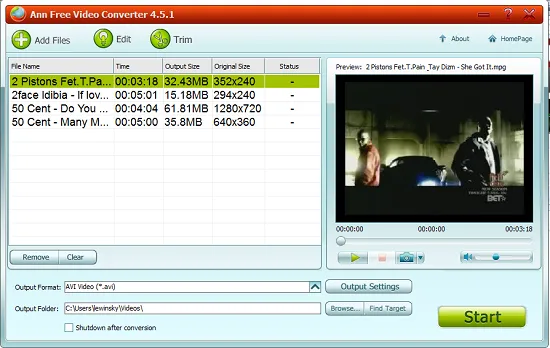
Ann Free Video Converter is a free software that converts video between most common video formats. Download Ann Video Converter free.
Ann Free Video Converter is a free software that converts video between most common video formats. The program is also able to rip audio from various video formats. The program runs on all Windows based operating systems including Windows 98.
Installation was uneventful. The interface is intuitive and very simple.
Adding files for conversion is very easy, you can drag and drop video or click Add Files. This opens a file chooser where you can select files you want to convert. Files can be added individually or as a batch. Added files are listed on the program interface and can be removed individually by using the Remove button or as a batch by clicking Clear. Listed files can be previewed by clicking the play button. You can take a screen shot of the video using the camera button and choose which format the screenshot should be saved in on the dropdown provided beside the camera button.
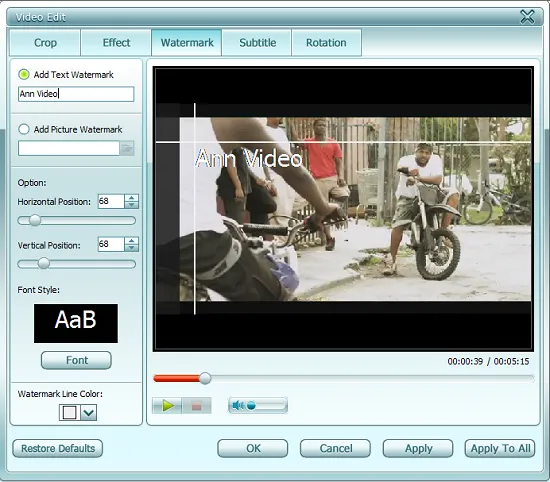
Visual effects and other video enhancements can be done by clicking the Edit button. This opens a new window with the appropriate editing tools. To crop a video, change the position of the crop window. You can also choose to keep the videos aspect ratio by checking the Keep Aspect ratio checkbox. Visual effects like brightness, saturation and contrast can be manipulated by moving the respective sliders. You can watermark the video with either text or an image. Add the appropriate text or select the appropriate image, set its position and click OK. The Subtitle tab can be used to add video subtitles in any position and using any type of font or styling. The video can be rotated up to 270 degrees. All changes to the video are viewed in real time and can be applied to one video by clicking the Apply or on all videos by clicking Apply All.
The Trim button allows you to trim your video as you wish. Using the trim feature you can cut sections of your video you do not want to convert. Once your videos are trimmed and edited you need to choose an output directory and output format for the converted files. The Output format dropdown includes a list to literally all available video and audio conversion profiles. Users can use inbuilt profiles or can create their own by clicking the Output Settings button and editing profile parameters like bitrates, frames per second, aspect ratio, sample rates and audio codecs. Select the shutdown after conversion checkbox if you want to shutdown windows when conversion is complete. Click Start to begin conversion.
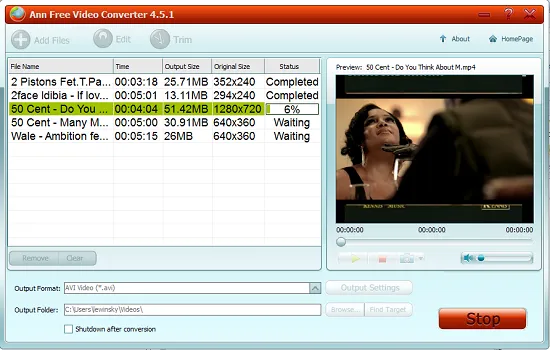
Ann Free Video Converter is definitely one of the best free video converter with superb features you will find around.
Here are 10 best free video converter software to convert videos to multiple output formats. Download best free video converter.
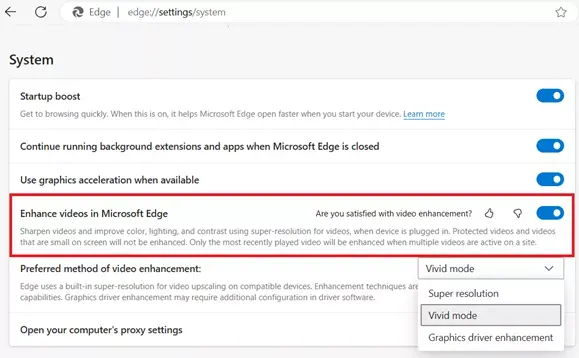
Read more: 10 Best Free Video Converter Software »Improve the quality of videos you watch online with Enhance video in Microsoft Edge. Boost colors & sharpen videos.
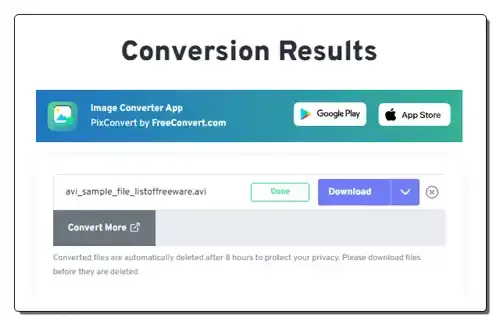
Read more: How to Enable Video Quality Enhancer in Edge to Improve Sharpness & Colors »Use these online AVI to WEBM converter websites to quickly convert AVI videos to WEBM, MOV, FLV, etc., video formats.
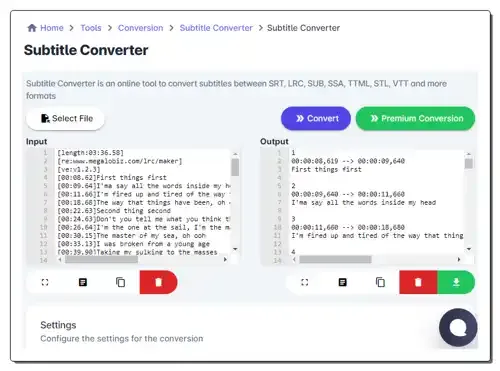
Read more: 10 Best Free Online AVI to WEBM Converter Websites »Use these online LRC to SRT converter websites to quickly convert LRC lyrics files to SRT subtitle file format.
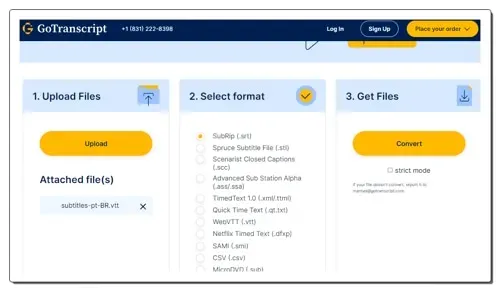
Read more: 5 Best Free Online LRC to SRT Converter Websites »Use these online VTT to SRT converter websites to quickly convert one or more VTT files to SRT subtitle file formats.
Read more: 6 Best Free VTT to SRT Converter Online Services »SpeedMaster is a free Google Chrome Extension that allows you to adjust the playback speed for each individual YouTube channel.
Read more: How to Set Different Video Speed for Different YouTube Channels »