12 Best Free Online Excel to XML Converter Services
Check out these best free online Excel to XML converter services where you can easily convert spreadsheet data into XML format.
Read more: 12 Best Free Online Excel to XML Converter Services »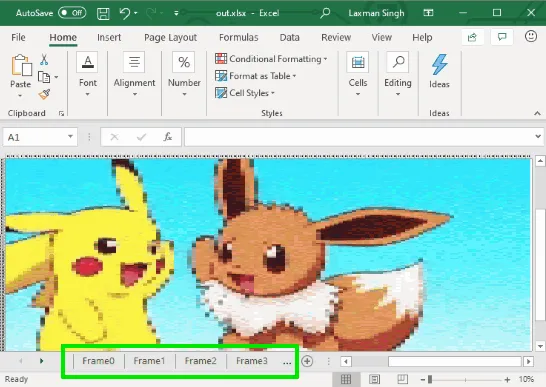
This article covers how to convert GIF to Excel. You can select an animated GIF and then save all the frames of that GIF as XLSX file.
This article covers how to convert GIF to Excel. You can select an animated GIF of your choice and then convert it to XLSX format file. The output file will have all the frames of the animated GIF in a single XLSX file. Each frame is saved in a separate sheet in the Excel file.
For this purpose, I have covered a free command line tool called “gif2xlsx“. You need to execute just a single and simple command using Windows Command Prompt and it will generate the output. As soon as the output is created, it is automatically opened in Microsoft Excel. That also means you must have installed MS Excel to get the output.
In the screenshot visible below, you can see that Excel file is opened which contains the frames of animated GIF converted by me using this software.
Step 1: Get the setup file of gif2xlsx tool using the link given at the end of this tutorial.
Step 2: Now save an animated GIF in the same location or folder where you downloaded or stored the EXE file of this tool.
Step 3: Open Windows Command Prompt (also known as CMD) using the Search box or Run box (Windows key + R). Just type cmd in Search or Run box to open it.
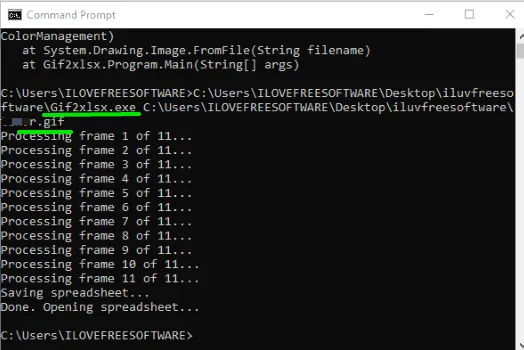
Step 4: Drag n drop the EXE of this tool in the Command Prompt window and then press space. The command is not completed yet. Now, drag n drop the animated GIF that you want to convert to Excel. So, your full command would be: gif2xlsx.exe gif.gif
Execute the command.
It will automatically process all the frames of the input GIF file and then produce the Excel file. When the Excel file is created, it is opened automatically. You will see that different sheets are created for each frame of the animated GIF. You can finally save the output Excel in any folder.
This is a unique tool which has a good purpose. Every single frame of animated GIF can be stored separately in a single Excel file. Try this tool and convert GIF to Excel.
Check out these best free online Excel to XML converter services where you can easily convert spreadsheet data into XML format.
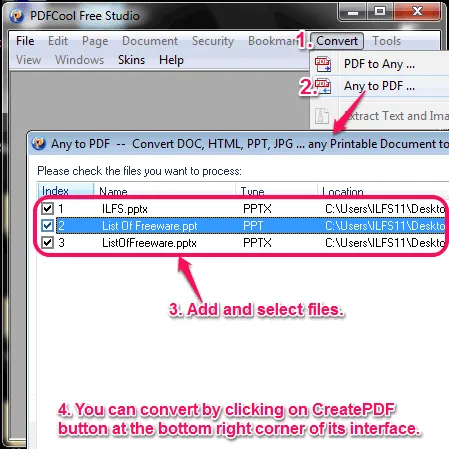
Read more: 12 Best Free Online Excel to XML Converter Services »Here are 9 best free software to convert PowerPoint to PDF in Windows. Most of them are different from each other and some also let you adjust PDF quality.
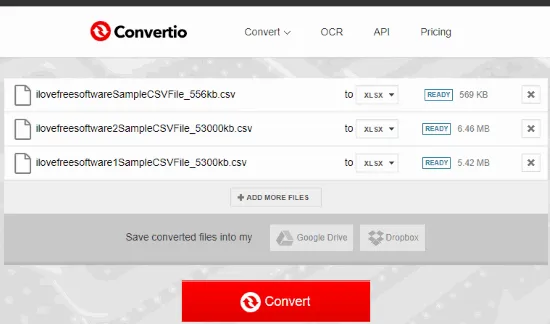
Read more: 9 Best Free Software To Convert PowerPoint To PDF »Here are 5 free online CSV to Excel converters. You can upload CSV file from PC or an online file and get the output in XLS, XLSX, or both formats.
Read more: 5 Free Online CSV To Excel Converters »Learn how to run Python in Google Sheets to import data, process data, and visualize data with the help of charts and graphs.
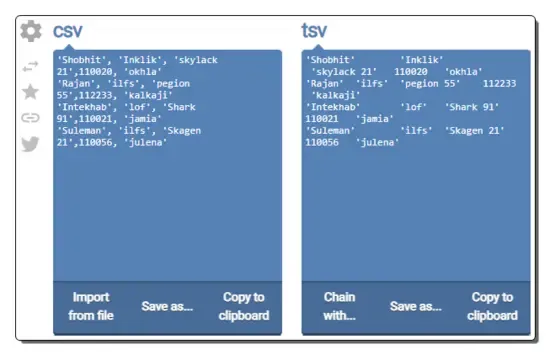
Read more: How to Run Python in Google Sheets »Check out these best free online CSV to TSV converter websites where you can convert data from CSV format to TSV format in seconds.
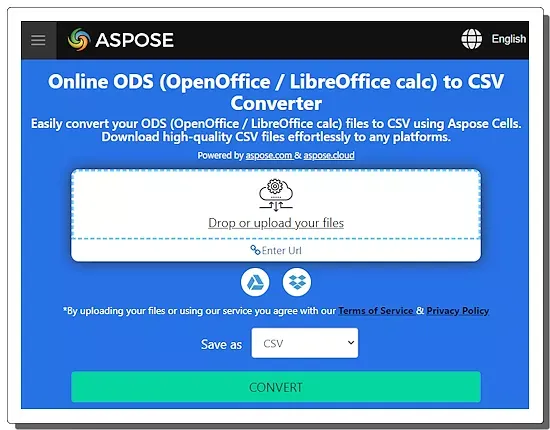
Read more: 8 Best Free Online CSV to TSV Converter Websites »Check out these best free online ODS to CSV converter websites where you can convert OpenDocument Spreadsheet data to CSV format.
Read more: 10 Best Free Online ODS to CSV Converter Websites »